The video shows a transcript
Use YouTube’s transcript panel. Selecting a transcript line can jump to the matching moment, which is useful when you need to check context.
Transcript workflow
Open the video description, choose Show transcript, and copy the text you need. Then check names, numbers, and technical terms against the video. TranscriptBeam does not accept YouTube links; it is for local MP4 and WAV files.
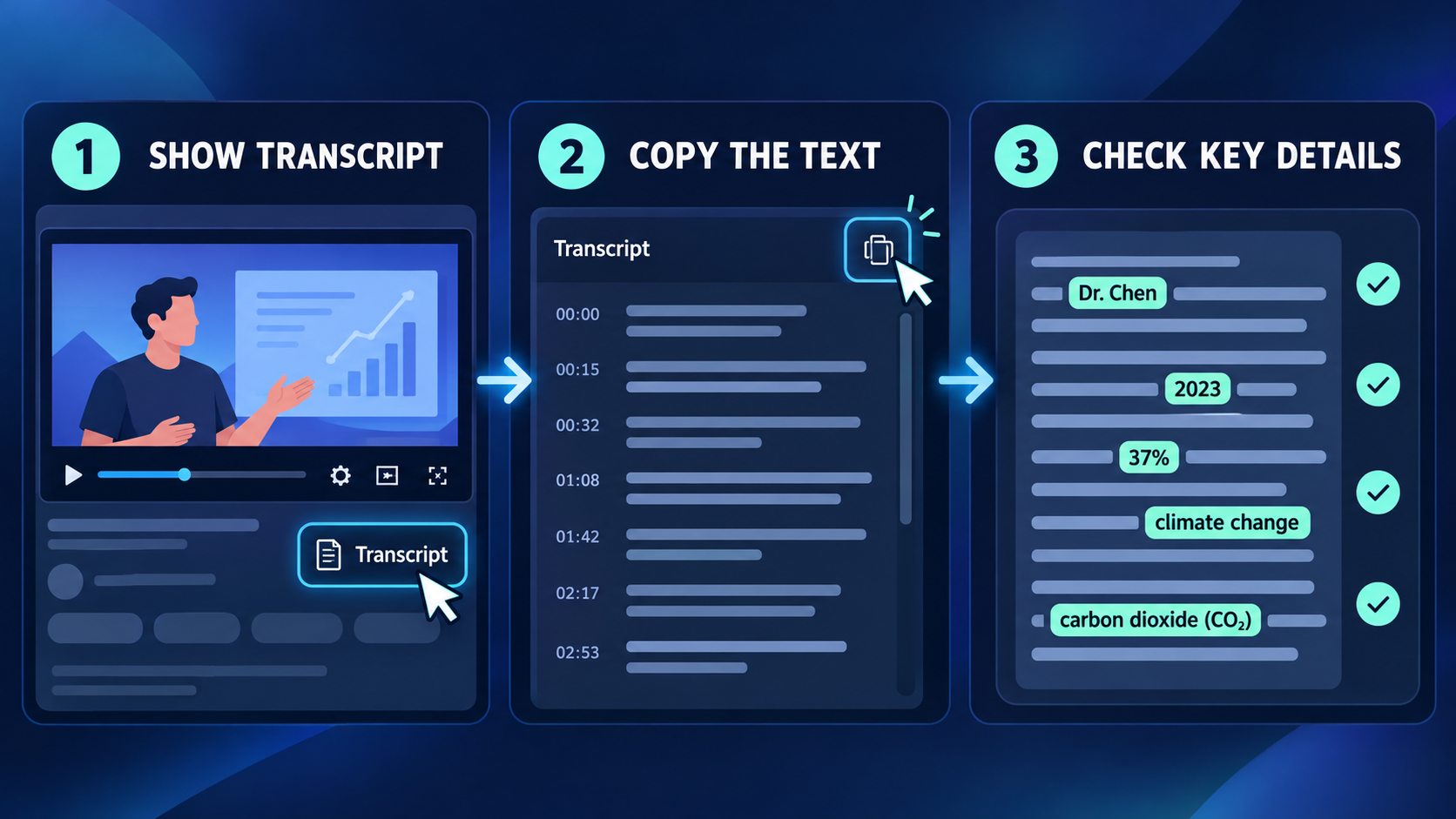
Use YouTube’s transcript panel. Selecting a transcript line can jump to the matching moment, which is useful when you need to check context.
Do not treat missing text as a downloadable transcript. The video may not have captions available in your current viewing context.
If you own the file or have permission to process it, a local transcription workflow can create new text from that file rather than retrieving a YouTube transcript.
A visible transcript may come from captions supplied by the creator or from YouTube’s automatic captioning. YouTube notes that automatic captions are generated by machine learning and that their quality can vary. The transcript is excellent for finding a passage, but the video remains the source to check when wording matters.
This is especially important for proper names, numbers, unfamiliar accents, overlapping speakers, and technical vocabulary. A quick replay at the recorded timestamp is more reliable than silently “correcting” uncertain text from memory.
TranscriptBeam does not fetch a YouTube URL. It turns a local MP4 video or WAV audio file into an English transcript inside your browser.
Use this route only when you already have the local file and the right to process it. You can review the transcript, switch timestamps on or off, and download TXT, SRT, or VTT.
YouTube’s current help page places it in the video description. Interface placement can change, so start by expanding the description and looking for the transcript control.
Not from YouTube’s built-in transcript panel. Creating new text from audio is a different task from retrieving an existing caption track.
No. TranscriptBeam accepts a local MP4 or WAV file only and does not fetch YouTube links.
Sources: YouTube Help: View video transcripts for the built-in transcript workflow, and YouTube Help: Use automatic captioning for the caption-quality boundary. The three-route decision framework and review checklist are original to TranscriptBeam.