Practical guide
How to get a transcript of a YouTube video
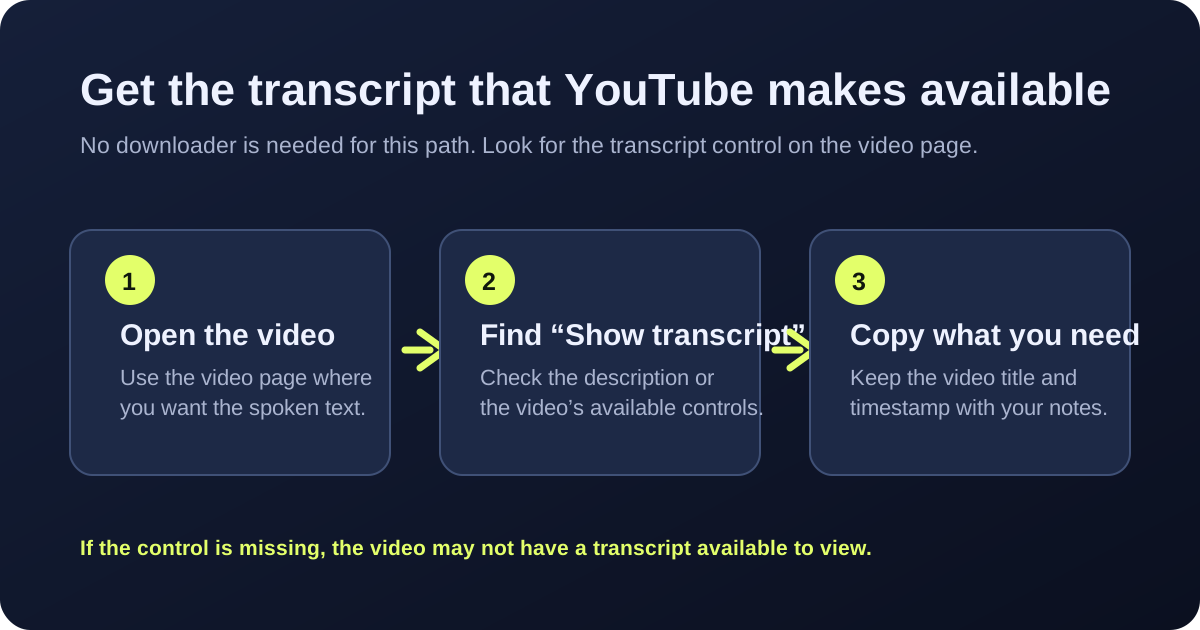
For a video with an available transcript, open the video page, look for Show transcript, and copy the text you need. If that control is not present, treat the transcript as unavailable instead of relying on a made-up download.
Quick answer
- Open the YouTube video you want to read.
- Expand the description or open the video’s available controls and select Show transcript when it appears.
- Read, select, and copy the sections you need into your notes or document.
First, check whether a transcript is actually available
The useful decision happens before copying: does the page offer a transcript control? If it does, use the transcript on that video page. If it does not, do not assume that every video has text ready to export. Availability can differ between videos, devices, and viewing contexts.
That check prevents a common dead end: looking for a downloader when there is no transcript to retrieve in the first place.
Copy the part you need, then keep the source clear
Once the transcript panel is visible, copy only the passage you need and keep the video link, title, and timestamp nearby in your notes. That makes it easier to return to the original moment and verify the words in context.
If timestamps are shown in the transcript interface, keep them when you need to cite or revisit a specific moment. If you only need readable notes, copy the passages without adding timing details you cannot verify.
What to do when “Show transcript” is missing
- Check the video page again on a desktop browser; the layout can place controls differently on smaller screens.
- Look for captions or transcript availability rather than assuming that every public video exposes one.
- If you own the media file or have permission to work with it, use a local-file transcription workflow instead of claiming that a YouTube transcript exists.
Where TranscriptBeam fits
TranscriptBeam does not accept a YouTube link. It processes a local MP4 video or WAV audio file in your browser and lets you review and download the resulting English transcript as TXT, SRT, or VTT.
Use it only when you already have the local file and the right to process it. Your selected file stays in your browser rather than being uploaded to a TranscriptBeam server.
Questions people ask
Can I get the transcript of a YouTube video if I cannot find “Show transcript”?
Not from that video page’s transcript control. Check whether the video offers captions or a transcript in the current interface. If it does not, avoid treating an unavailable transcript as if it were available.
Are automatic captions always exact?
No. YouTube says automatic captions are produced with machine learning and their quality can vary. Review important quotations against the video before relying on them.
Can TranscriptBeam download a YouTube transcript from a URL?
No. TranscriptBeam accepts a local MP4 or WAV file only. It does not fetch, paste, or download a YouTube URL.
Source note: the caption-quality guidance above is based on YouTube Help: Use automatic captioning. The practical steps describe the transcript control commonly labeled “Show transcript”; labels can move as YouTube changes its interface.